Available

Playtomic connection, player sync and tournament import

Save and test club API credentials, link each venue with its tenant ID, sync padel players into CRM, and retrieve tournament bookings by club and date.

ForClub ownersTournament organizers
Tournatomic Settings screen for connecting and testing Playtomic

How to prepare a working connection

Open Dashboard → Settings, save the Playtomic Client ID and Client Secret, then run Test connection. Next open Dashboard → Clubs and set the Playtomic tenant ID on every venue that should participate.

01

Open Dashboard → Settings

Scroll to the Playtomic connection card. Existing credentials are shown as saved values and the status badge reflects the last successful test.
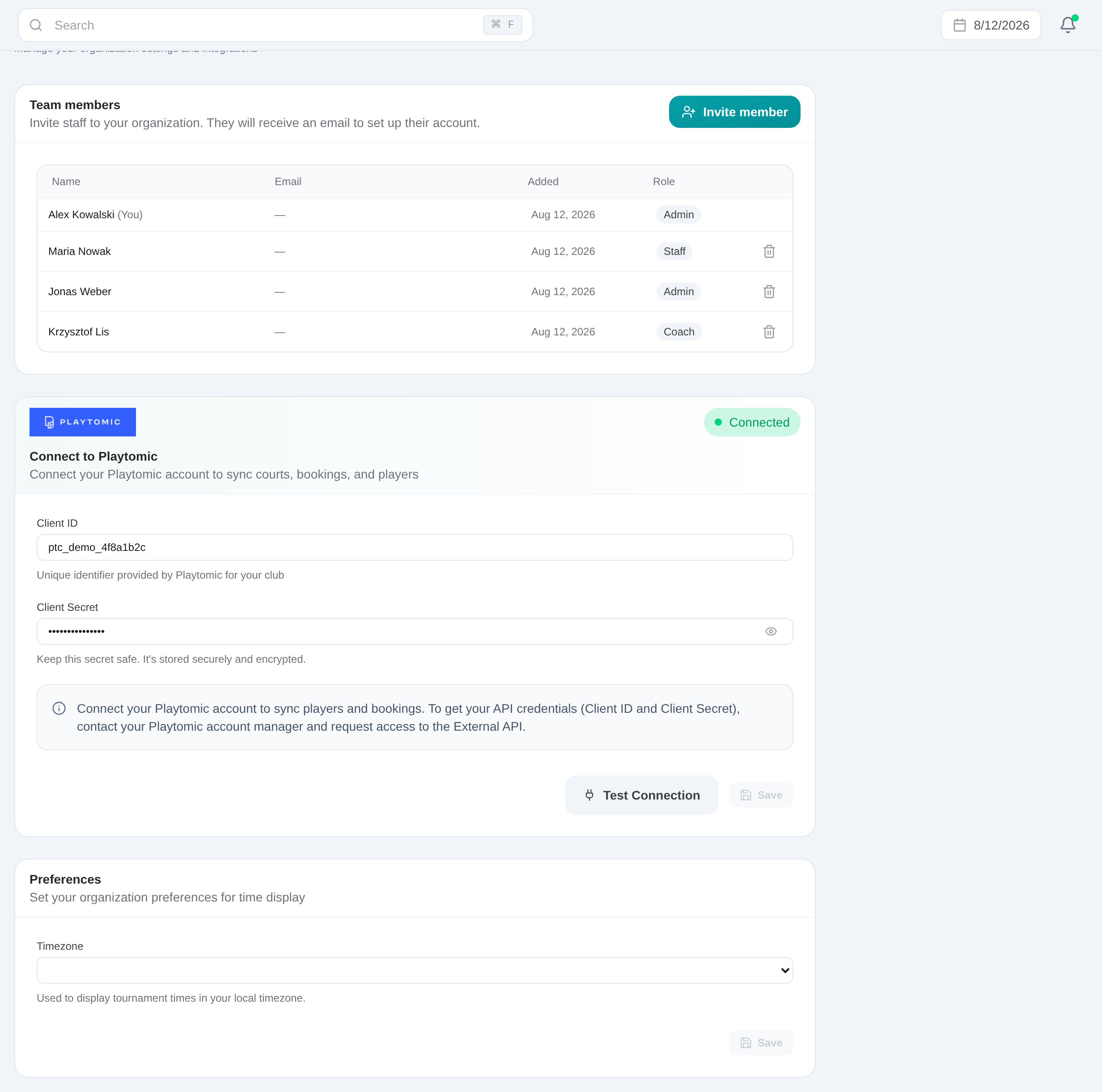
Tournatomic Settings screen for connecting and testing Playtomic
Enter club credentials, test the connection, then sync available club, court and player data.
02

Enter Client ID and Client Secret

Paste the club API credentials into the two fields. Keep the secret in the password field unless you need to inspect it for a correction.

03

Save the credentials

Choose Save before testing. Editing the values resets the tested state until the new pair is saved and verified.

04

Run Test connection

Use the test action and wait for a success result. Resolve credential or permission errors before moving to sync or import.

05

Set each club’s Playtomic tenant ID

Open Dashboard → Clubs → the club, enter its Playtomic tenant ID and save. Repeat for every venue that should be queried.
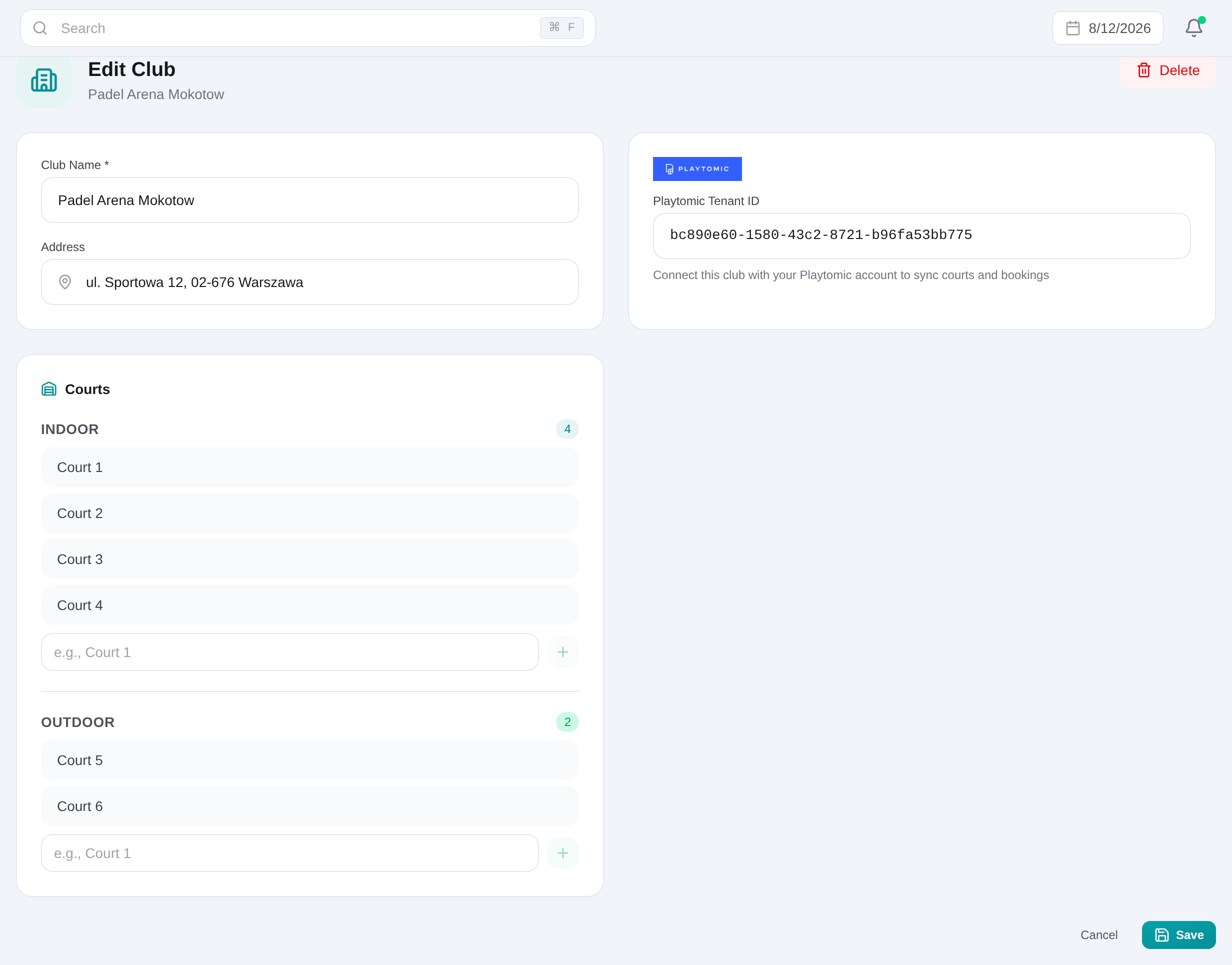
Club detail panel listing playable courts
Court records are available when organizers select a venue and courts for a tournament.
06

Open Dashboard → Players and run sync

Choose Sync from Playtomic. Review the result counts for clubs and players, then search the CRM for an expected imported contact.
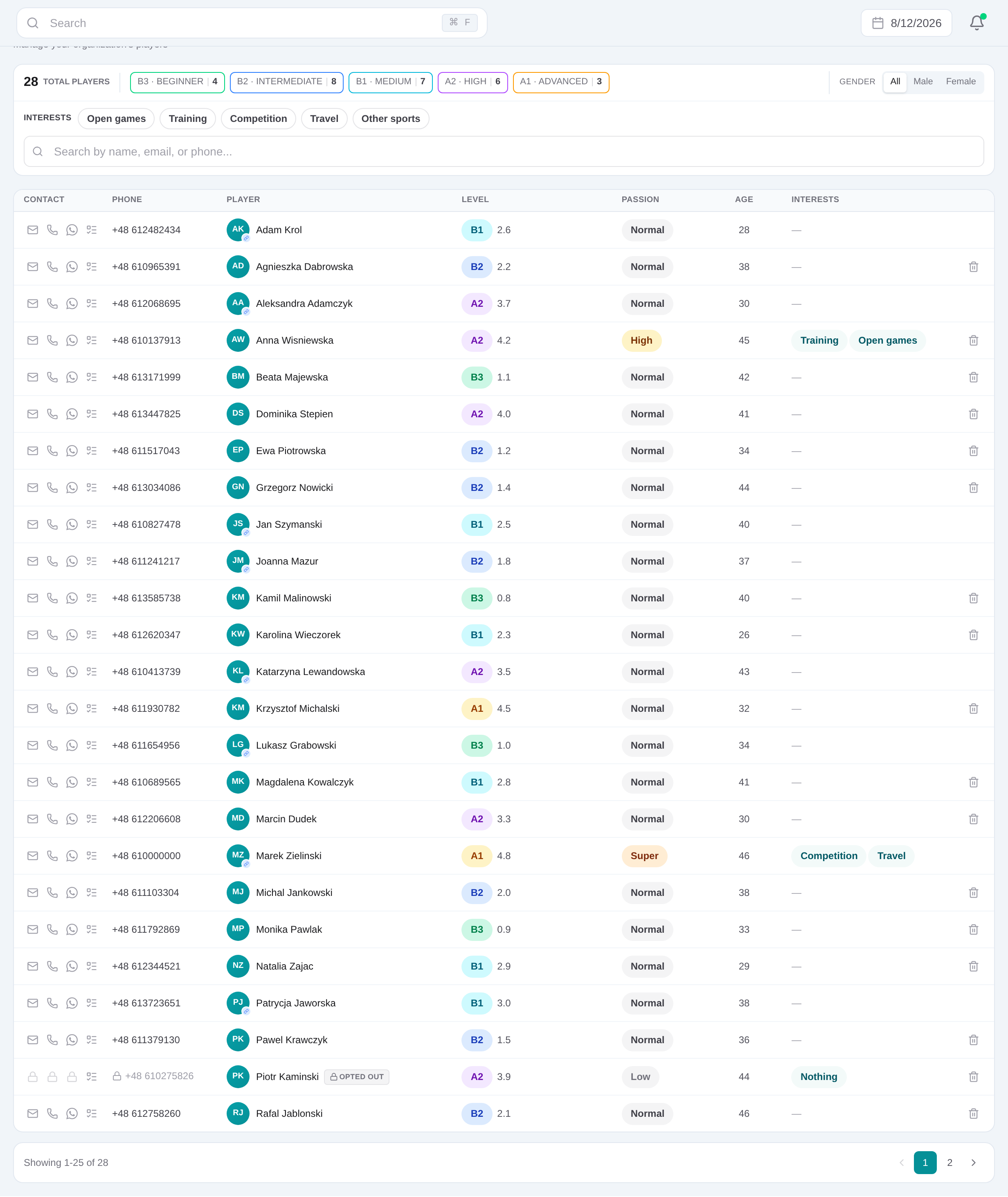
Player CRM list with search, filters and player details
Use the player list to narrow records by operational criteria before opening a profile.
Tournatomic Settings screen for connecting and testing Playtomic
Enter club credentials, test the connection, then sync available club, court and player data.

Run the supported data workflows

From Dashboard → Players, start Sync from Playtomic to create or update padel CRM records across configured clubs. From Dashboard → Tournaments → New, retrieve tournament bookings for one configured club and date, select the activity and review its courts and participants before creating the tournament.

Keep the integration boundary explicit

Tournatomic reads data available through your club credentials. It does not automatically reserve courts, write bookings back to Playtomic or provide real-time booking sync.

Frequently asked questions

Playtomic connection, player sync and tournament import

Save and test club API credentials, link each venue with its tenant ID, sync padel players into CRM, and retrieve tournament bookings by club and date.

Get started