How to take work from new to done
Open Dashboard → Tasks and create the item in the appropriate workflow status. Add a clear outcome, priority and due date, select assignees, then move the card across the Kanban or update status from the task slide-over.
Open Dashboard → Tasks
Choose Kanban for status flow or List for detailed filtering by status, priority, type, assignee, player relation and club.
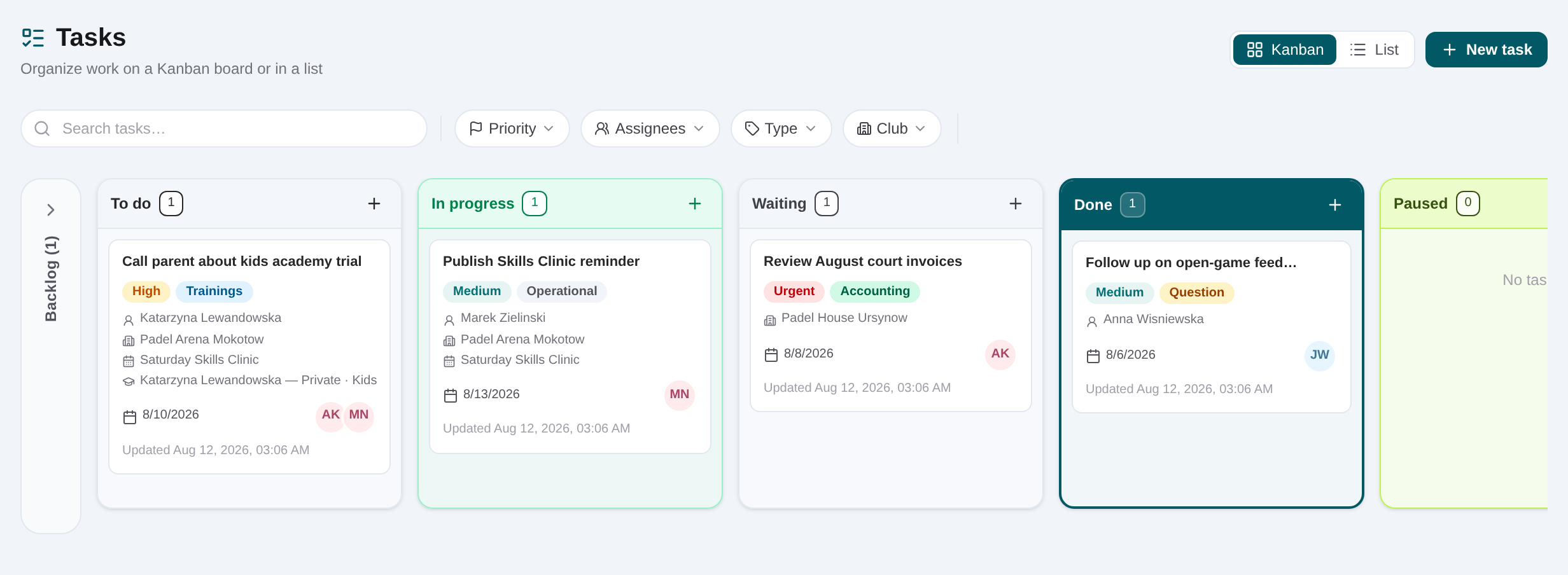
Create the task in the correct status
Choose New task or add from a Kanban column. Enter a specific title and description of the expected result.
Set priority, due date and assignees
Open the task’s details rail, select the operational priority, choose a due date and add one or more responsible colleagues.
Attach the source record
Link the player, club, event or academy enrollment when the task comes from that workflow. This gives the assignee a direct route back to the facts.
Add checklist items
Break multi-step work into checkable actions. Save the task, then tick items as they are completed.
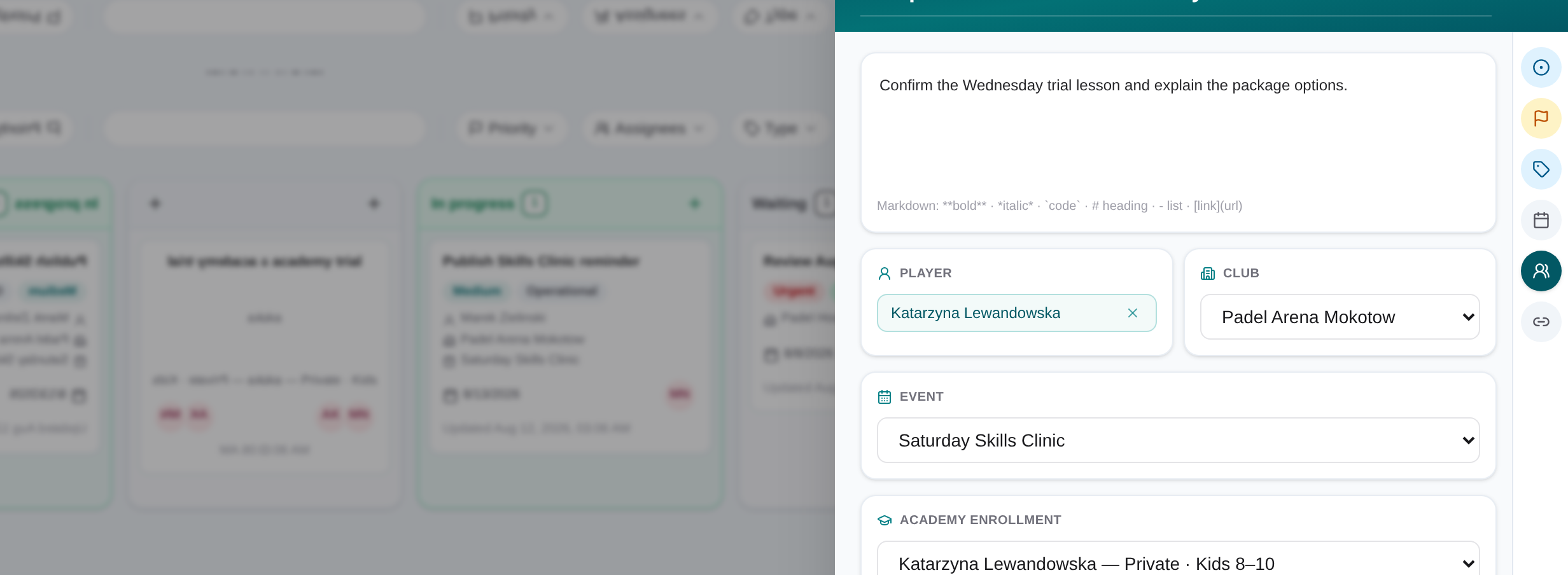
Record progress and move status
Add dated notes for new information and move the card or update status as work proceeds.
Finish in Done
Confirm the outcome and linked record are current, complete the remaining checklist, and set the task to Done.