Set and compare coach availability
Create the coach, draw autosaved weekly teaching windows, scope each slot to any or one club, and compare instructors side by side.
Before you start
Create the relevant club records first. A coach needs a user account only when dashboard access is required.
What you will have
Each coach will have a reusable weekly availability plan and academy managers can compare selected calendars.
Tips
Use Any club only when the coach can genuinely teach at every venue; otherwise attach the slot to the specific club.
Troubleshooting
If a box cannot be saved, confirm its end is after its start. Wait for the Saved indicator after drag or resize changes.
Steps
Open Dashboard → Coaches
Use the coach list to select an existing instructor or start a new profile.
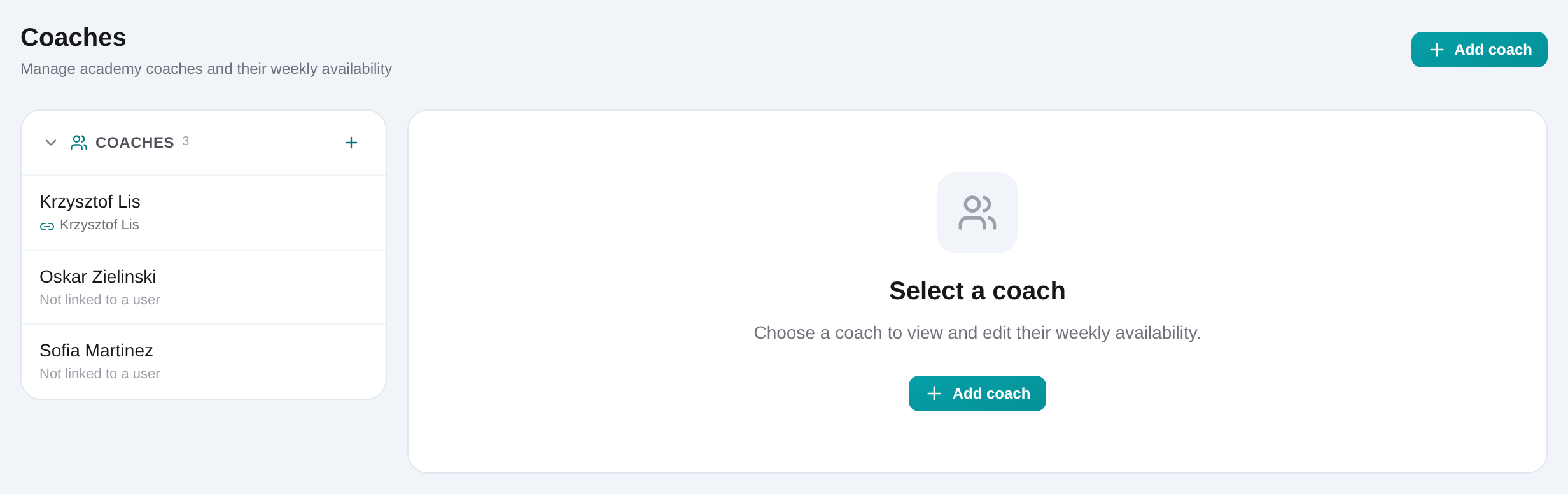
Create the coach profile
Enter the coach name and save. Keep one profile per instructor so academy enrollments and availability refer to the same person.
Optionally link an organization user
Select an unlinked organization member when the coach also needs dashboard access. Leave the profile unlinked otherwise.
Click the weekly grid to add availability
Add recurring Monday–Sunday boxes, then drag a box to move it or resize its edges. Times snap to the calendar’s 30-minute grid.
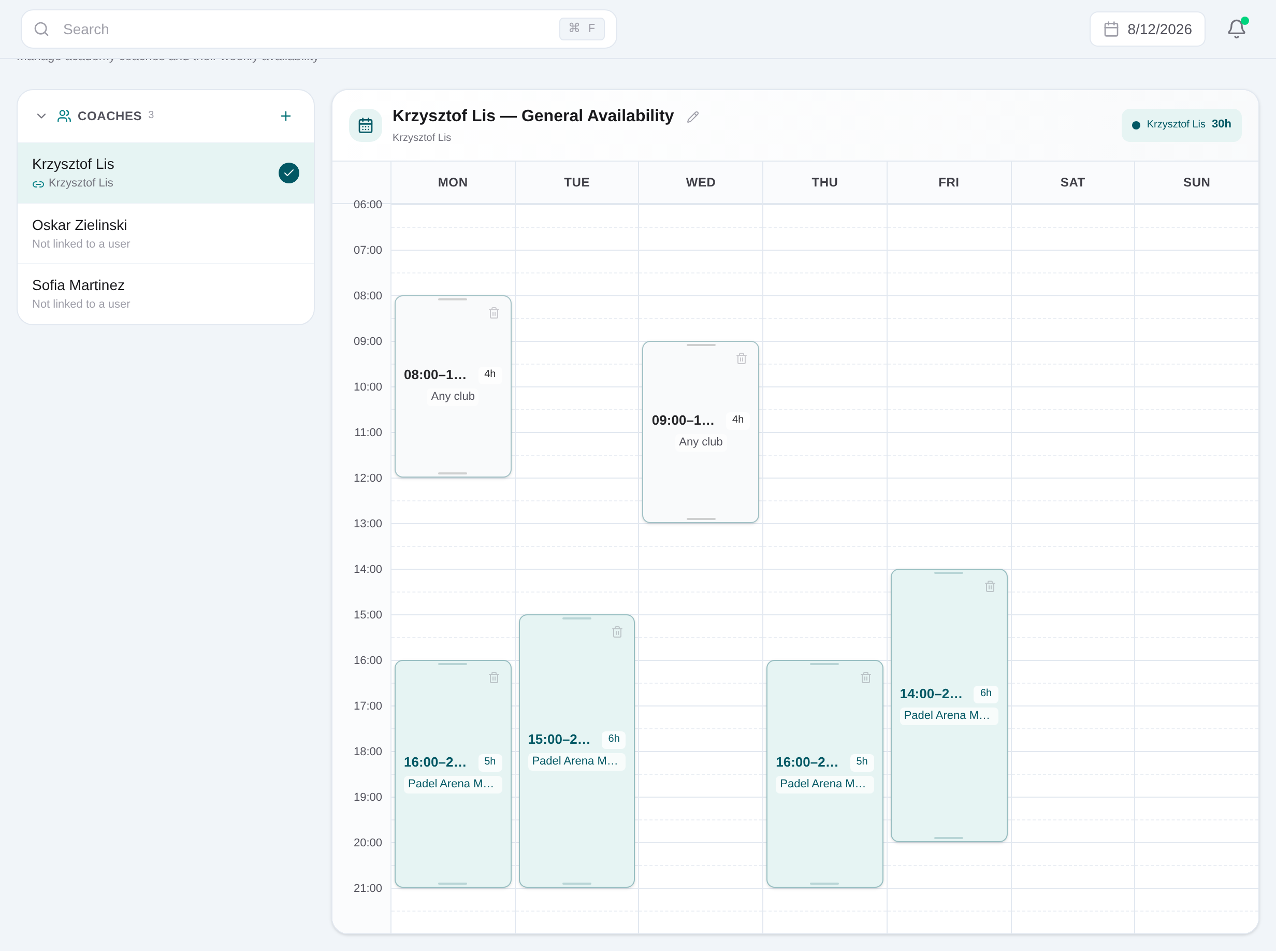
Choose Any club or one venue
Select the slot and set its club scope. Confirm the autosave indicator after the change.
Toggle coaches into the comparison
From the coach list, select additional names to display their availability beside the primary coach and identify overlap or alternatives.
Related content
Set and compare coach availability
Create the coach, draw autosaved weekly teaching windows, scope each slot to any or one club, and compare instructors side by side.
Get started