Manage event enrollments
Create the internal event brief, set participation metadata, add CRM players, and maintain each person’s status as plans change.
Before you start
Create the CRM players you expect to add. Know the date, time, duration and eligibility rules.
What you will have
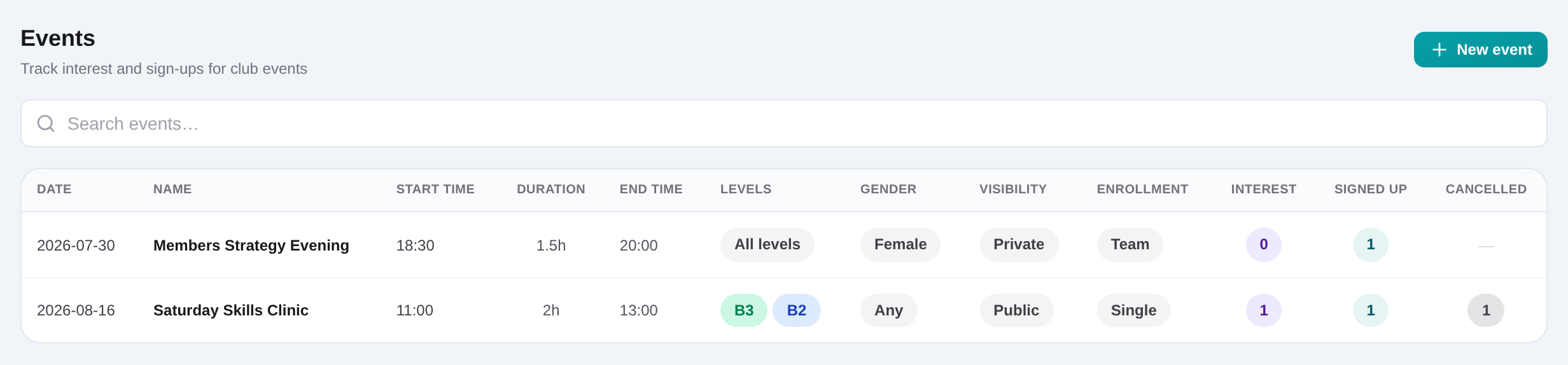
The event will show its operating details and current counts for Interest, Signed up and Cancelled.
Tips
Leave levels empty when the event is for all levels. Keep cancelled rows as status history instead of deleting them.
Troubleshooting
If a player is missing from search, update or create the CRM profile first, then return to the event.
Steps
Open Dashboard → Events
Review upcoming records, then choose Add event or open an existing event route.
Enter date and timing
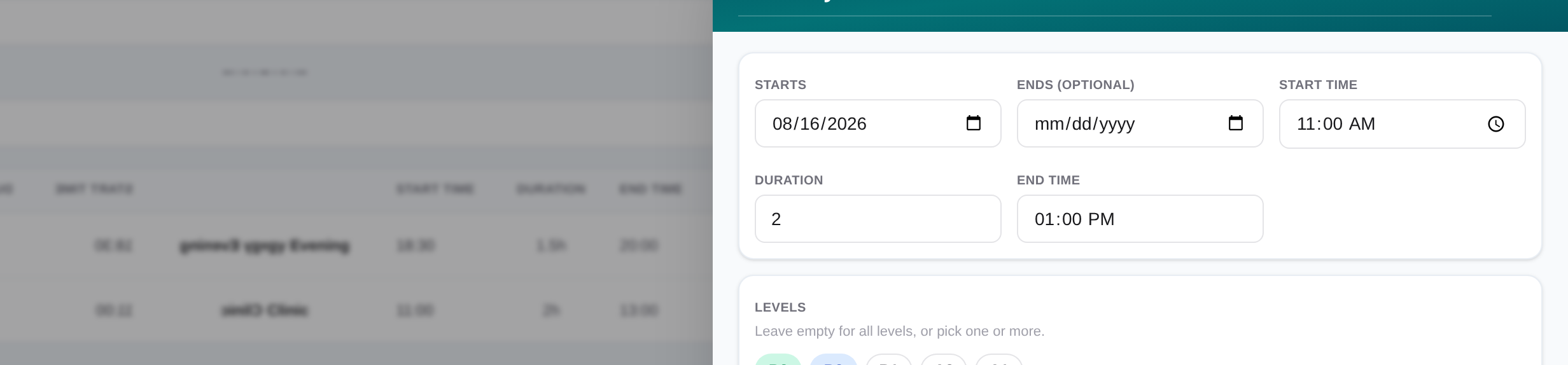
Add the name, start and end dates, start time and positive duration. The end time is calculated from start plus duration.
Set levels, gender, visibility and mode
Select applicable level codes or leave all levels, choose Any/Male/Female, set Public or Private metadata, and choose Single or Team enrollment.
Search and add CRM players
In the event slide-over, find a player, choose Interest, Signed up or Cancelled, and add the row.
Update each decision
Change the participant select when the player confirms, withdraws or returns to interest. Save the event record.
Review the list counts
Return to Dashboard → Events and use the Interest, Signed up and Cancelled counts as the internal attendance picture.
Related content
Manage event enrollments
Create the internal event brief, set participation metadata, add CRM players, and maintain each person’s status as plans change.
Get started