Review conversation history
Search the admin conversation list or start from a player, open the correct day, and use turns or summary as context for the next action.
Before you start
The organization must have retained WhatsApp conversation rows. The full Conversations list requires admin access.
What you will have
You will identify the correct day, understand its available context and return to the linked player for operational follow-up.
Tips
Use the player profile Conversations tab when you already know the contact; use the admin list when searching by phone, date or summary.
Troubleshooting
A Pending summary is not missing data: open the day to read its retained turns. If no player is linked, use the phone to identify and update the CRM record.
Steps
Open Dashboard → Conversations
Admins can open the list from dashboard navigation. Other staff can begin at Dashboard → Players → the player → Conversations.
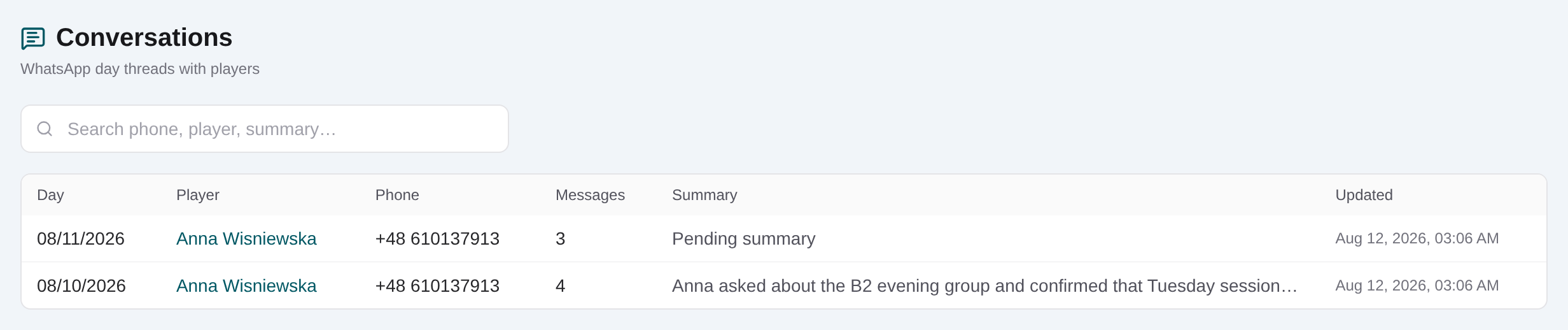
Search by player, phone, day or summary
Enter the available identifier and choose the day row that matches the follow-up you are handling.
Open the conversation day
Review the day, phone, linked player and turn count in the slide-over before relying on the content.
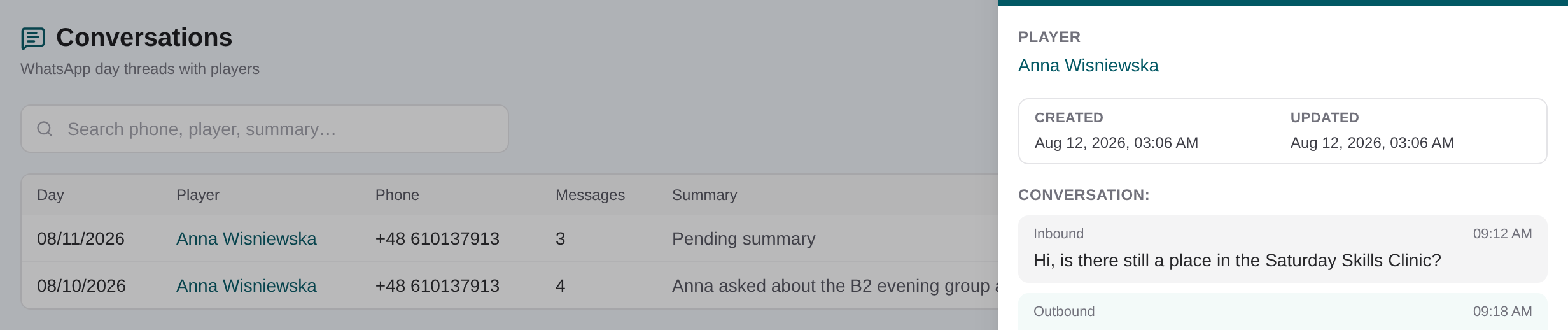
Read retained turns or the daily summary
For an unsummarized day, read inbound and outbound turns in order. For a summarized day, read the summary first and any remaining turns below it.
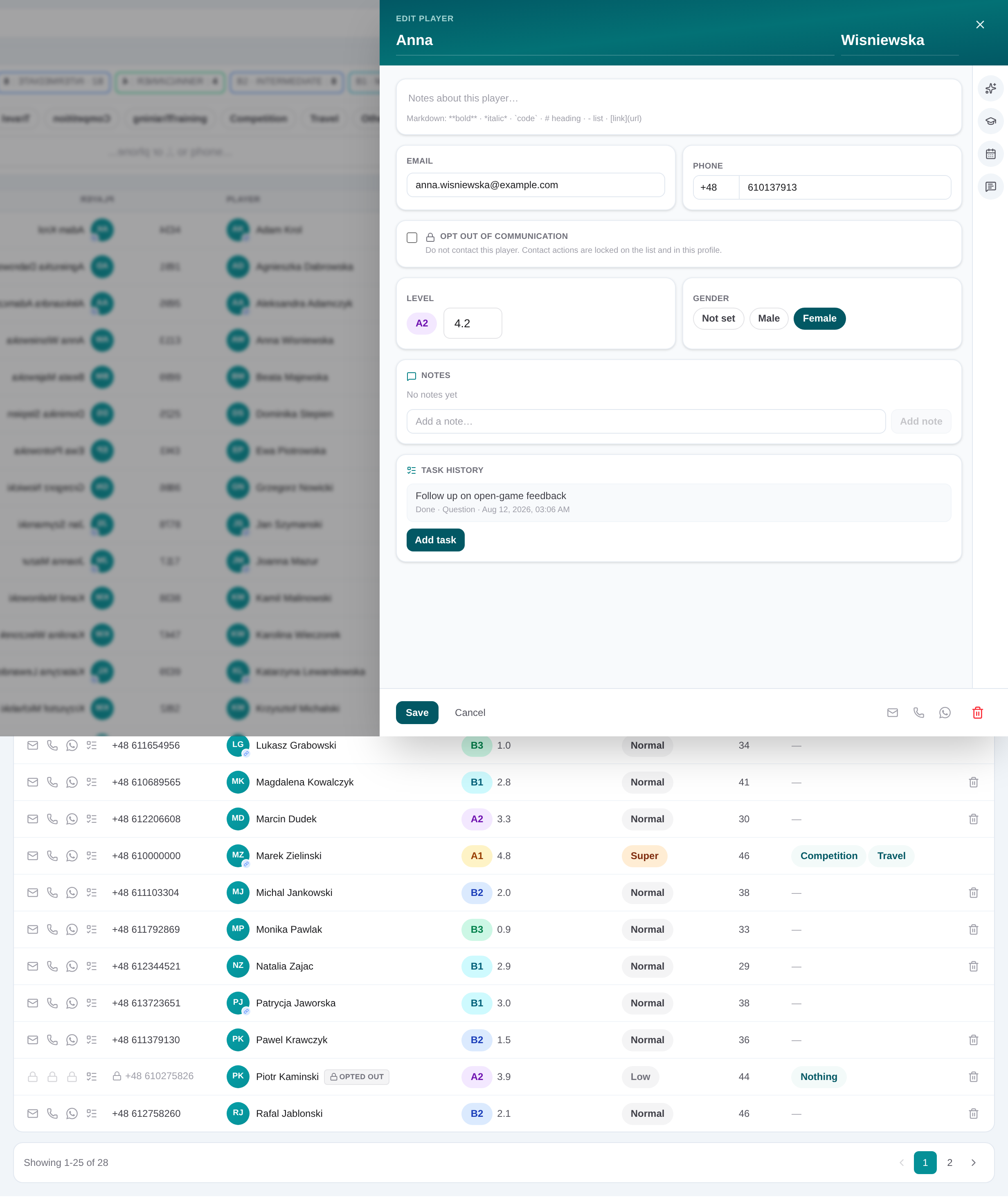
Open the linked player and take the next action
Use the player link to review CRM details, then create the appropriate task, academy interest or other staff-managed follow-up.
Review conversation history
Search the admin conversation list or start from a player, open the correct day, and use turns or summary as context for the next action.
Request AI beta access