Get started with Tournatomic
Create the organization, add a real venue and courts, invite the team, then choose one operational workflow to establish first.
Before you start
Use an email address for the person who will own the initial organization setup. Have the first club name, address and court list ready.
What you will have
You will have an organization with at least one club, its courts and invited colleagues, ready for a first CRM, academy, task or tournament workflow.
Tips
Start with the module that solves an active operational problem. Add the rest when the team has a real process to move.
Troubleshooting
If the dashboard has no organization context after sign-up, finish organization creation before adding clubs or inviting colleagues.
Steps
Create the owner account
Open /auth/sign-up, register the first organization owner, confirm the email flow and sign in.
Create the shared organization
Complete the organization setup shown after sign-in. This organization scopes clubs, players, staff and operational records.
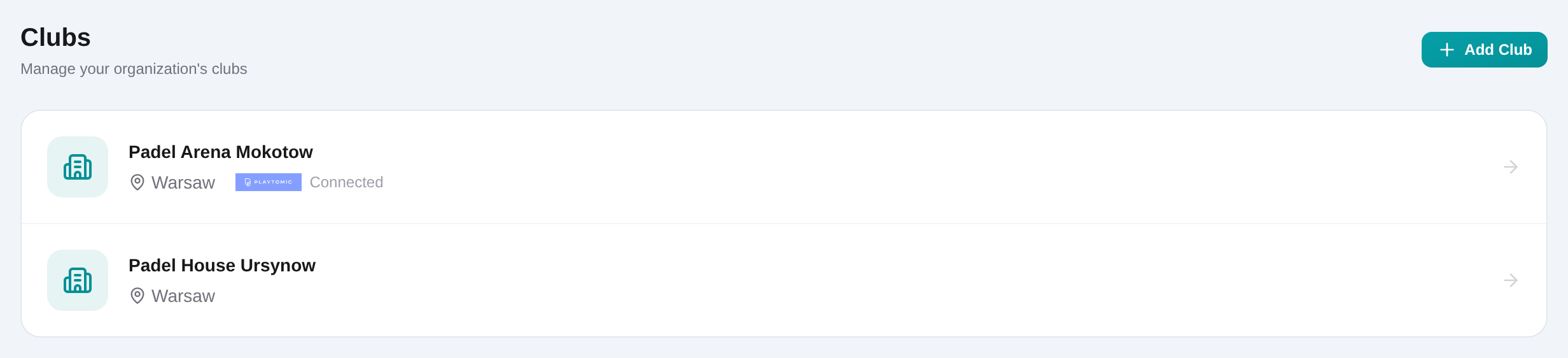
Open Dashboard → Clubs and add the venue
Choose Add club, enter the venue name and optional address, then save it. Add a Playtomic tenant ID only if that club will use the connected workflows.
Add the club’s indoor and outdoor courts
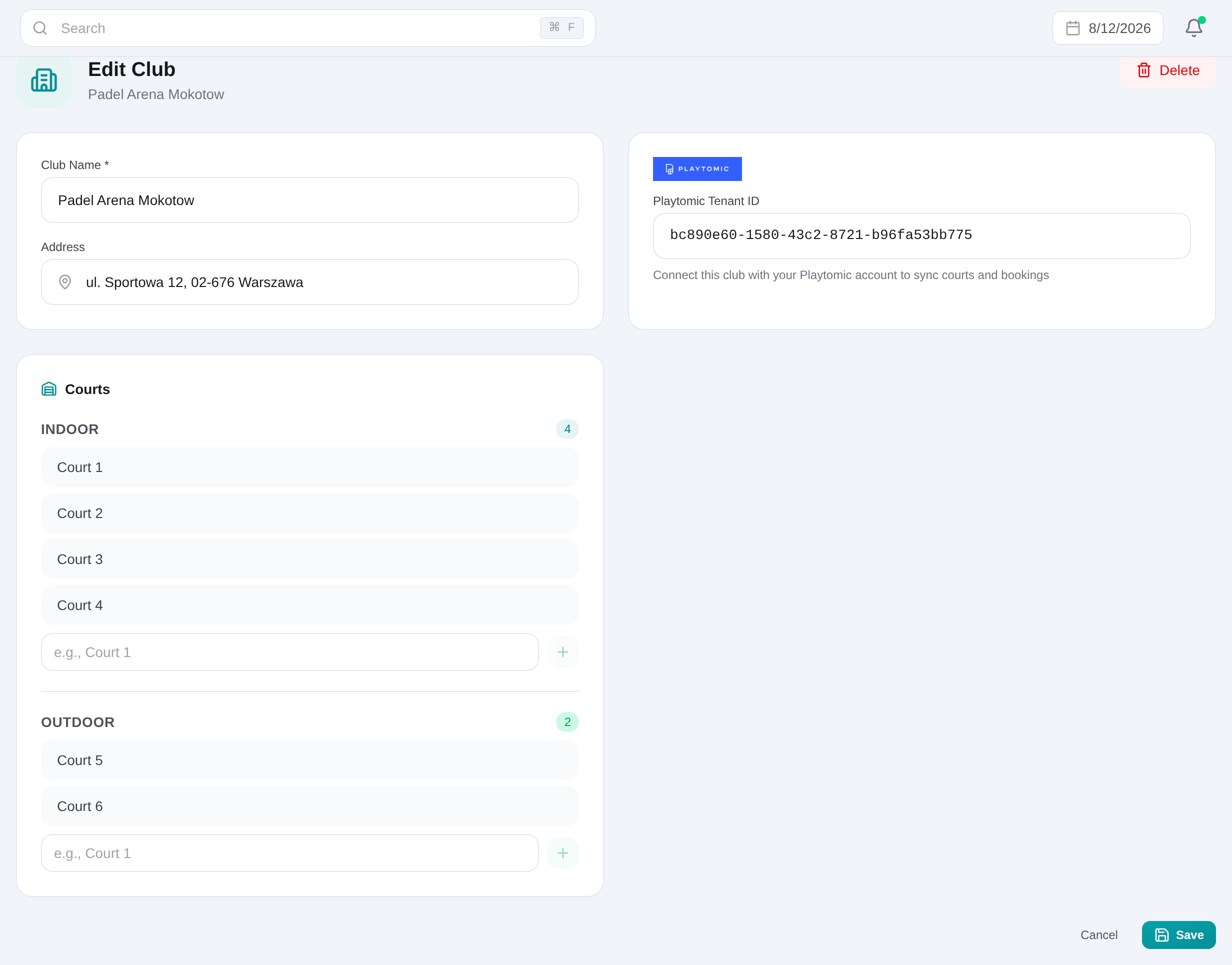
Open the saved club and add each playable court by name under Indoor or Outdoor. These records become selectable during tournament setup.
Open Dashboard → Settings and invite colleagues
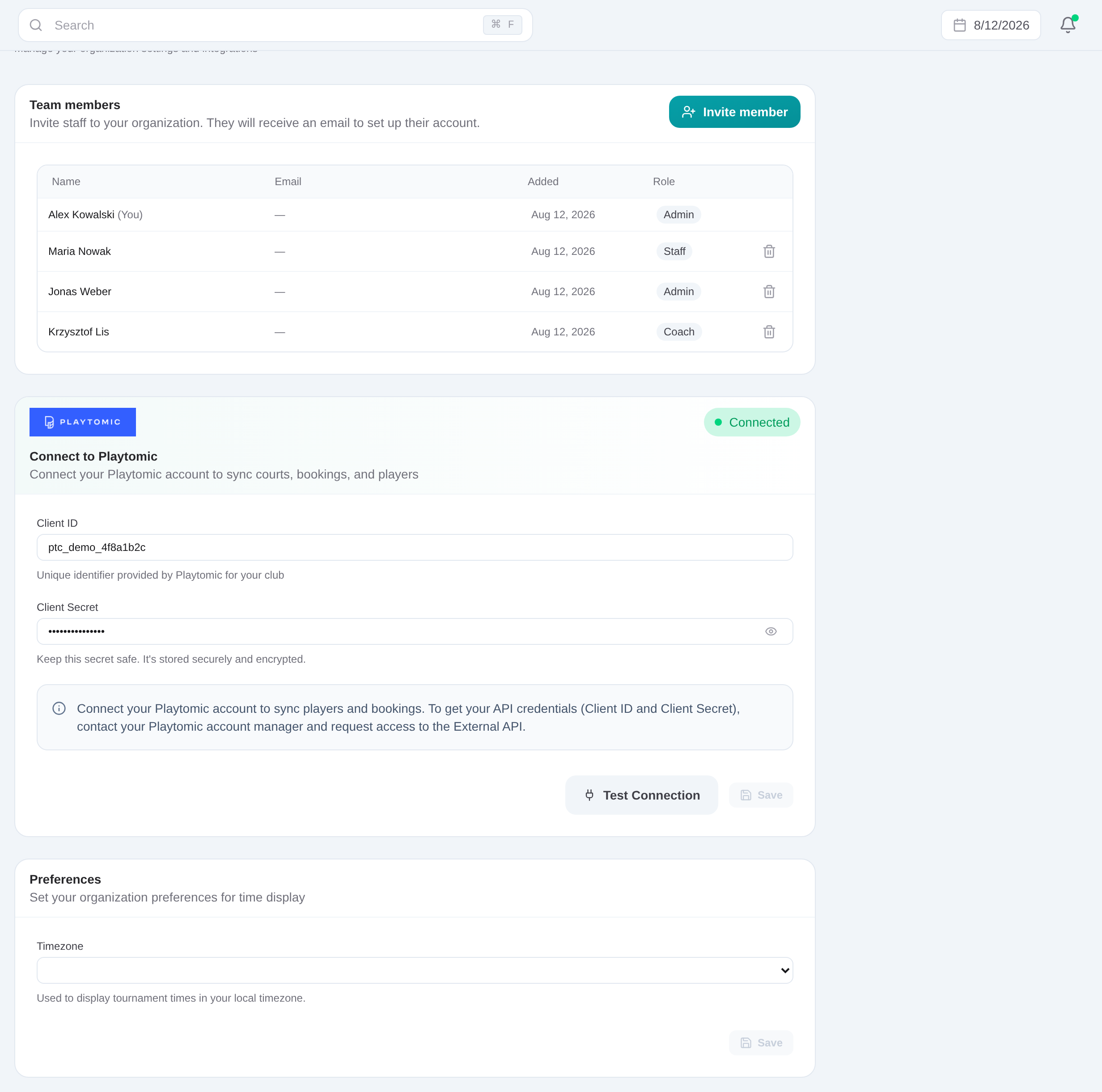
Choose Invite member, enter the colleague’s email and name, select Admin, Staff or Coach, and send the invitation.
Choose the first daily workflow
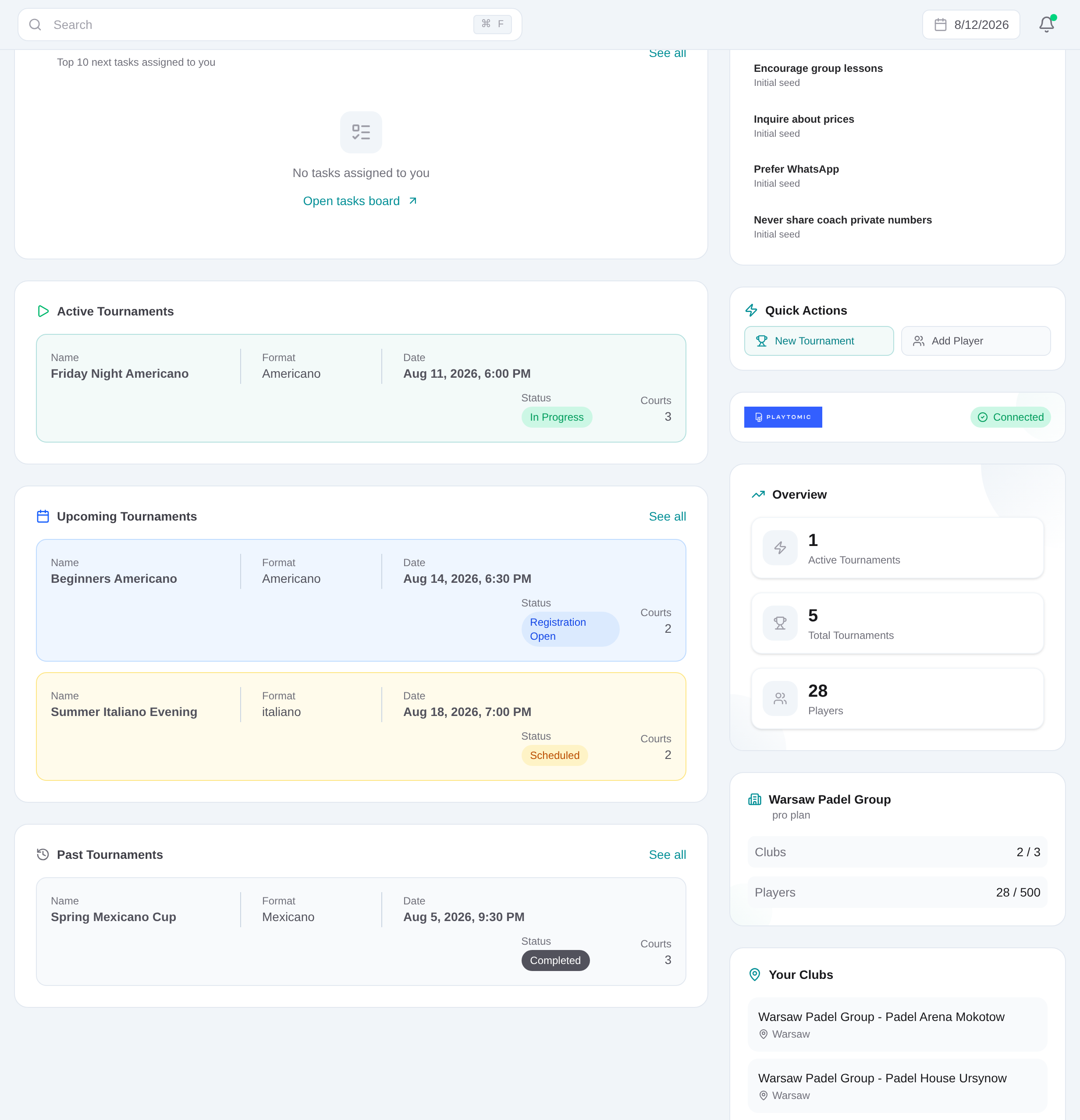
Return to Dashboard. Start with Players and Tasks for reception, Academy and Coaches for lesson operations, or Tournaments and Meets for organized play; verify one real record end to end.
Related content
Get started with Tournatomic
Create the organization, add a real venue and courts, invite the team, then choose one operational workflow to establish first.
Get started