Invite your club team
Add a colleague from Dashboard → Settings, choose Admin, Staff or Coach, and verify membership before assigning operational work.
Before you start
You need permission to manage organization members and the colleague’s email, first name, last name and intended role.
What you will have
The colleague will appear in the organization member list and can set a password through the invitation flow.
Tips
Grant Admin only to people who need organization-level controls. A coach profile does not require a user link unless that coach needs dashboard access.
Troubleshooting
If the email is already a member, do not resend repeatedly. Check the member list and use the existing organization membership.
Steps
Open Dashboard → Settings
Use the dashboard navigation to open Settings. The Team members card lists current names, emails, dates and roles.
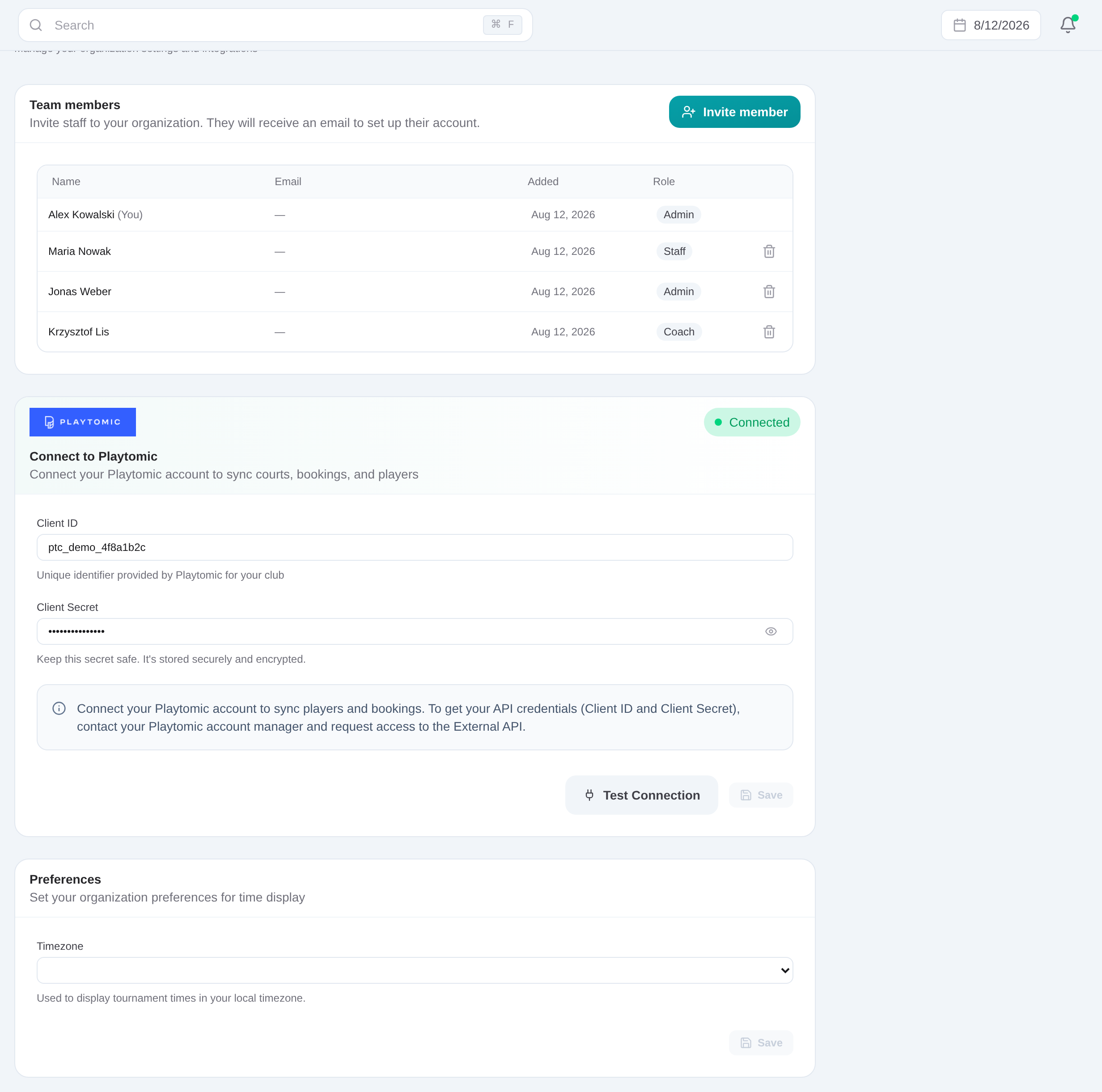
Choose Invite member
The button appears only when your account can manage members. Open the inline invitation form.
Enter the colleague’s identity
Add the email, first name and last name that should appear in the organization member list.
Choose Admin, Staff or Coach
Select the role that matches the colleague’s work. Admin has organization-level management responsibilities; Staff and Coach cover day-to-day access patterns.
Send and verify the invitation
Submit the form and wait for the success message. Confirm the new or existing account appears in the Team members list with the expected role.
Have the invitee set a password
The invited person opens the email link, sets a password on the localized password-reset page, and signs in to the organization.
Invite your club team
Add a colleague from Dashboard → Settings, choose Admin, Staff or Coach, and verify membership before assigning operational work.
Get started